
How to host an HTML file online
Step-by-step: turn a single HTML file on your computer into a live, shareable link with HTTPS — no server setup required.
Updated 2026-08-30
If you've got one HTML file and need it online, for a client, a teammate, or just to check how it actually renders on a real URL instead of file://, here's the fastest route, and the details that determine which method actually works for your file.
Option 1: paste the HTML directly
If your file is self-contained (styles and scripts inline, or loaded from a CDN via a full URL), you don't need to upload anything at all. Open the file in a text editor, copy the full contents, and paste it into a host that accepts raw HTML.
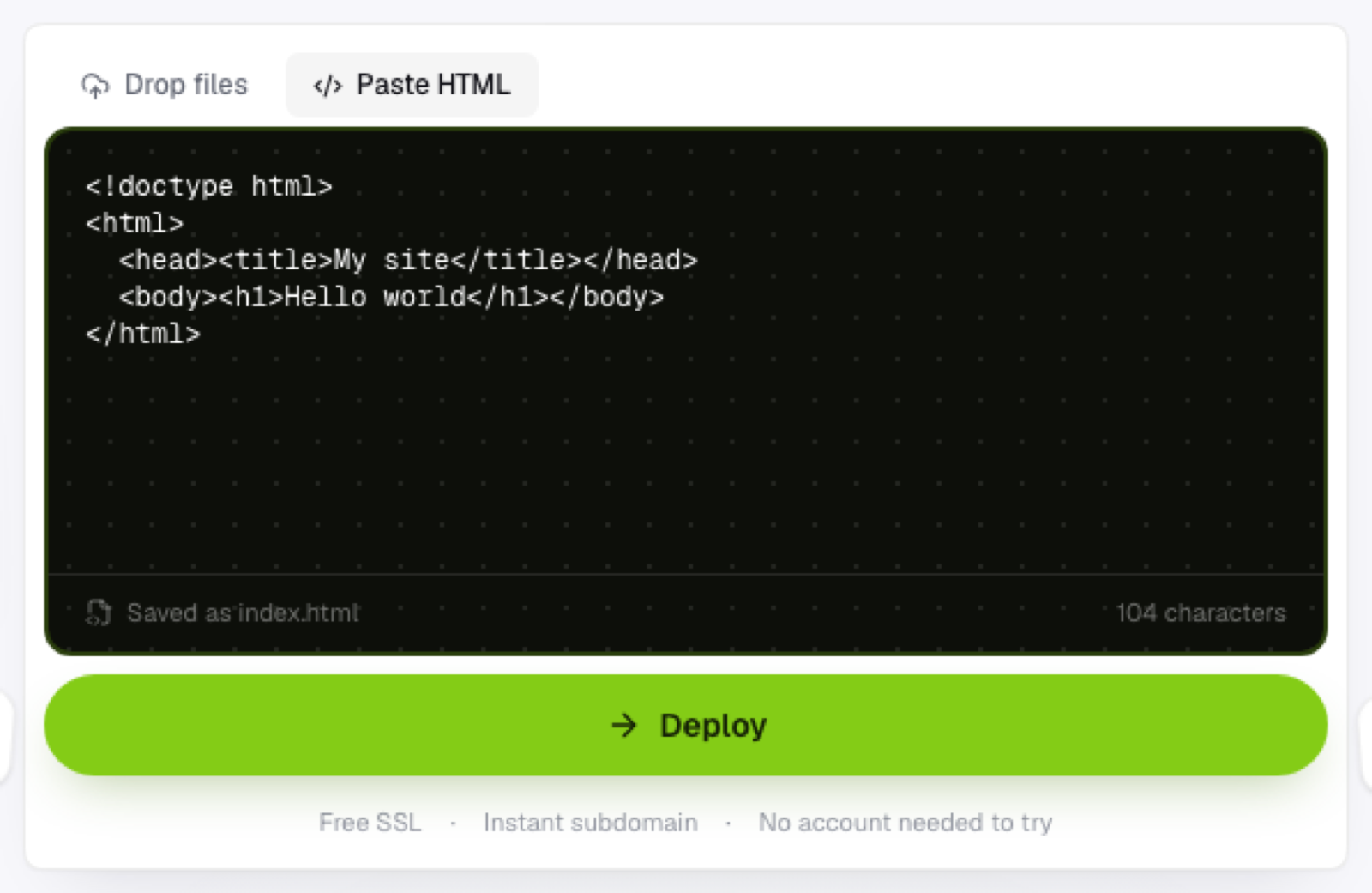
Flaash's paste mode saves whatever you paste as index.html and deploys it immediately. No file picker involved.
Option 2: upload the file
If pasting isn't convenient, drag the .html file itself onto a drop zone instead. It's treated the same way a pasted file would be; no folder structure is required for a single page.
Option 3: upload a folder, if it has assets
If your HTML references a separate style.css, a script file, or local images, those relative paths only resolve if the files are uploaded together. Put the HTML file and its assets in one folder, keeping the structure they already have locally, and upload the whole folder instead of just the HTML.
What to check before you deploy
Open the file locally in a browser first, and confirm it renders correctly. Hosting won't fix a file that's already broken before it goes up.
If you see missing images or unstyled content after uploading just the HTML, that's the sign you needed to upload the folder instead, not the file on its own.
Confirm any external resources (fonts, CDN scripts) are loaded via full URLs, not local paths. Those will keep working regardless of how you deployed the rest of the page.
After it's live
You'll get an HTTPS subdomain immediately, nothing to request, nothing to configure. Copy the link and send it. If you need to make an edit, update the file and re-upload; there's nothing to reconfigure on the hosting side when you do.
Frequently asked questions
What's the difference between pasting HTML and uploading an HTML file? Functionally, very little, both end up saved as index.html. Pasting is faster when you're copying content directly from an editor; uploading is more convenient when you already have a saved file.
Can I host more than one HTML page this way? A single paste or file upload only covers one page. For multiple pages, upload a folder containing all of them, with internal links pointing at each other by filename.
Will my page look different once it's hosted versus opened locally? It shouldn't, assuming all your assets are referenced correctly. If something changes, it's almost always a relative-path issue that a local file:// preview doesn't catch but a real server does.