
How to deploy a .zip file as a website
Have a zipped export from a design tool or static site generator? Here's how to turn it into a live website without unzipping it yourself first.
Updated 2026-08-30
A .zip archive is one of the most common ways static sites get exported: from a design tool, a static site generator's build output, or just because zipping a folder is the easiest way to move it around in one piece. You don't need to extract it yourself before hosting it. A static host that accepts .zip uploads unpacks it for you automatically.
What the archive needs to contain
For the site to work correctly once deployed, your archive should have an index.html at the root, along with any CSS, JavaScript, images, and fonts it references, using the same relative paths they had before zipping.
The most common mistake here is zipping a parent folder instead of the folder's contents, which results in an extra nesting level: the archive ends up containing my-site/my-site/index.html instead of my-site/index.html sitting directly at the top. If your deployed site looks empty or broken, this is the first thing worth checking.
Deploying it
Confirm the .zip was built from the folder containing index.html at the top level, not a parent directory around it. Then drop the .zip file onto the upload zone directly:
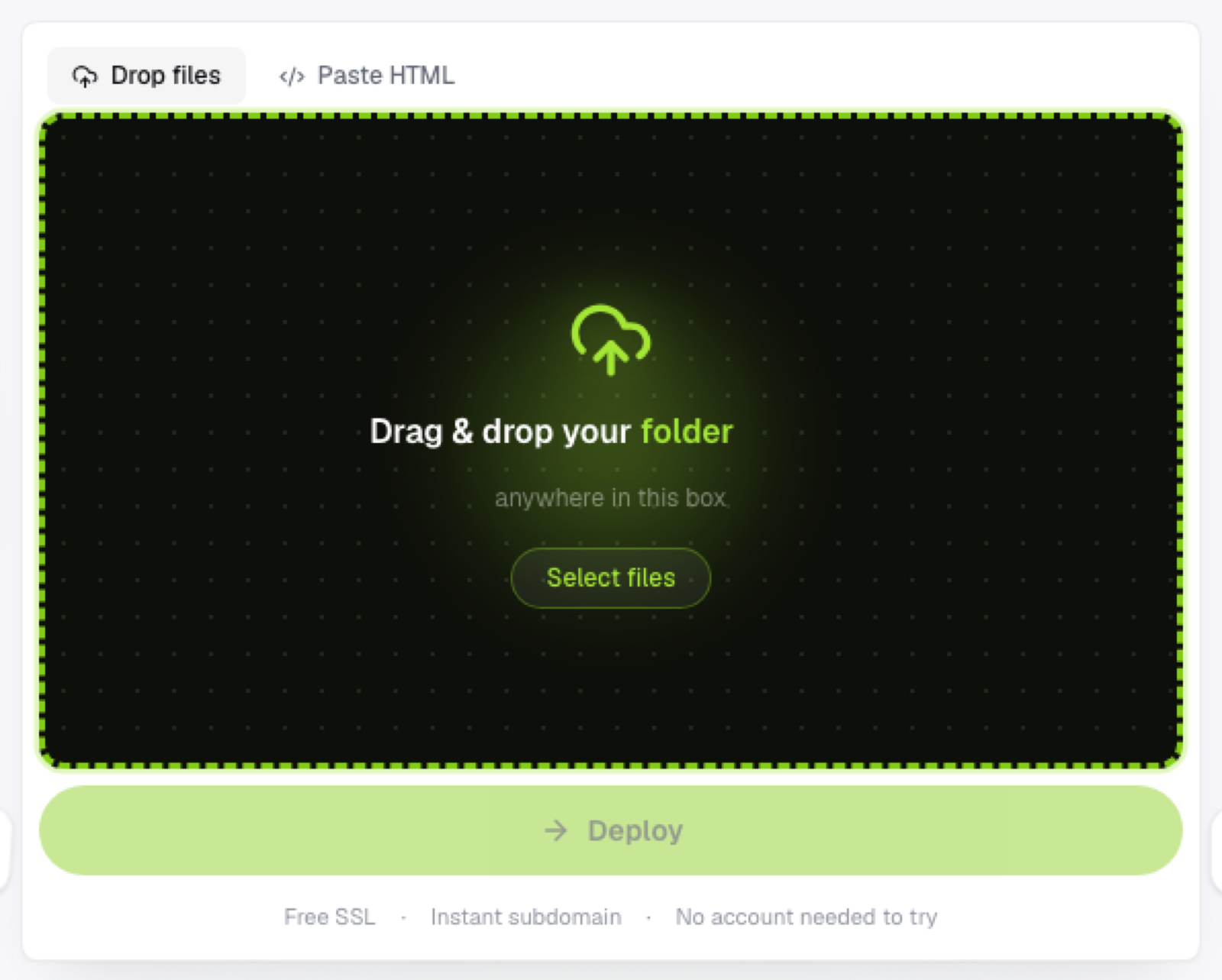
There's no need to extract it first. Wait for it to unpack and upload, which happens automatically, straight from your browser to storage. You'll get a live HTTPS link the moment that finishes.
On Flaash, this uses the same drop zone as a folder upload. A .zip and a folder are treated identically, unpacked and served exactly as they are, with no build step running in between.
Where zip exports usually come from
Static site generators like Hugo, Eleventy, Jekyll, or Astro produce a build output folder (often named dist, public, or _site) that you zip and upload; make sure you're zipping that output, not the source project that generates it.
Design tools that export to HTML and CSS typically hand you a folder ready to zip directly.
Documentation generators are the same pattern: zip the generated HTML output, not the source Markdown files that produced it.
In every case, the rule is the same: zip the finished, ready-to-serve files, not whatever generates them.
After deployment
If you update the source and rebuild, zip the new output and upload again. It replaces what's live without needing any extra configuration on the hosting side.
Frequently asked questions
Does the .zip file size matter? Static sites are usually small enough that this rarely comes up, but larger archives (lots of high-resolution images, for example) simply take a bit longer to upload and unpack. There's no separate configuration needed either way.
What happens if I upload a .zip with the wrong folder structure? The deploy typically completes, but the site itself will look broken or empty because index.html isn't where the host expects it. Re-zip with the correct structure and upload again.
Can I zip a folder that includes files I don't want served, like source code or a README? You can, but it's cleaner to zip only what you actually want live. Anything included in the archive gets uploaded and made publicly accessible at its corresponding path.